LeafYX · Features
All features, environment by environment.
From the case archive to the report: LeafYX commands, options and tools, grouped the way the operator finds them in the program.
- Main
- Case archive, case structure, image gallery
- Acquisition
- Live image, microscope and stage control, automatic metaphase finding
- Processing
- Chromosome separation, manual and automatic karyotyping, ideograms, compositions
- Fusion
- Several captures of the same field to recover chromosomes left outside
- Count and analysis
- Chromosome count and analysis by class on the metaphase
- FISH
- FISH environment, with fluorochromes and probes
01 Main
Case archive
The case is the working unit of the archive: it contains the slides and, for each slide, the images. Every image stays linked to where it comes from.
- Database
- Microsoft SQL Server Express, on the workstation or on a shared network server
- Structure
- Case → slides → images
- Permissions
- Read, write, administration
- Barcodes
- Code128, Code39, Codebar, Interleaved 2 of 5
- Exchange
- Cases, slides and individual images (.cell files)
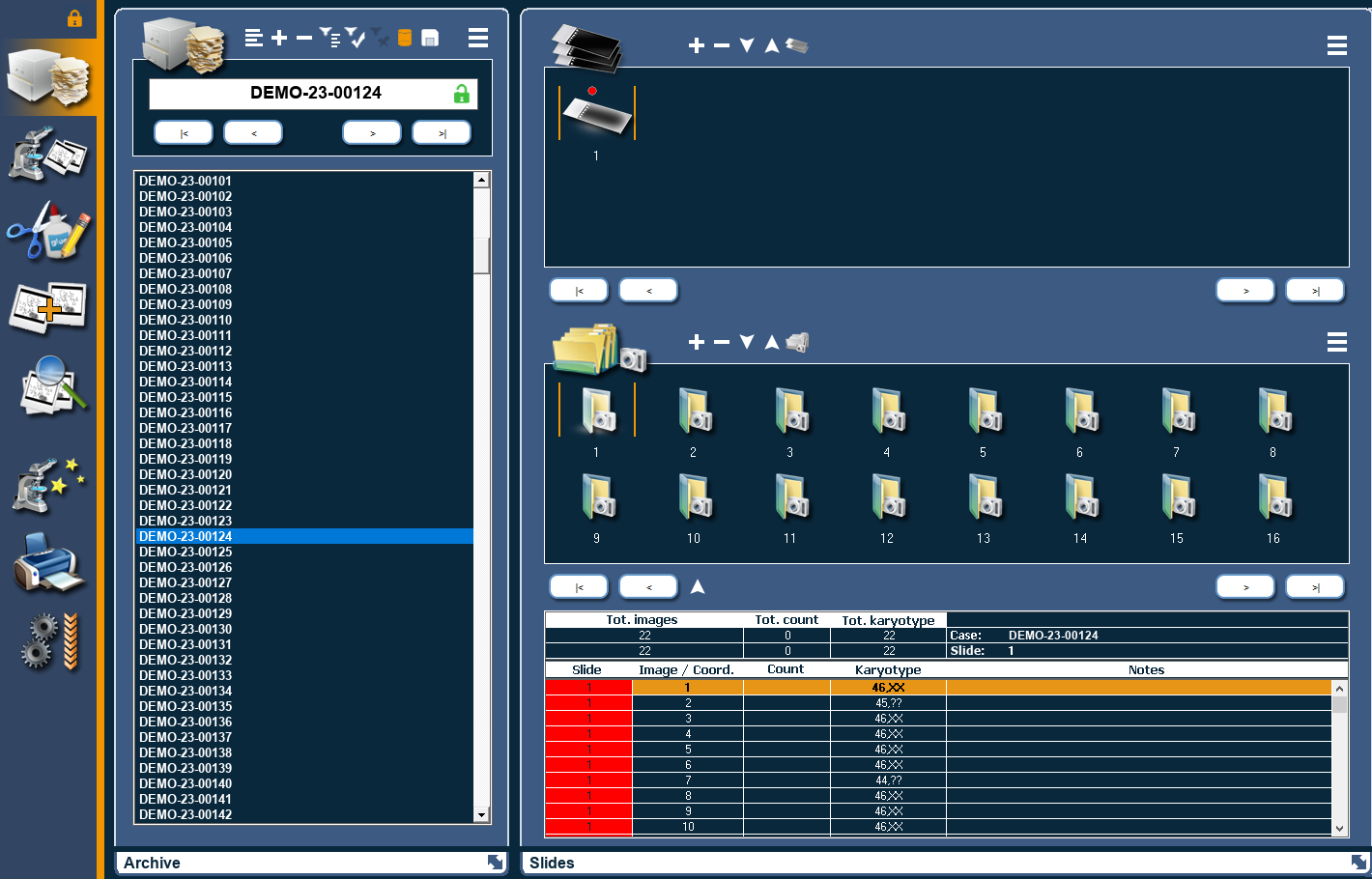
Database and archives
- Server locationThe database sits on the workstation or on a server shared by several workstations.
- Create new archive / Load archiveSeveral archives on the same workstation.
- Images on another driveThe image folders can be on a different disk from the database.
Record and searches
- Configurable case recordThe fields of the record are defined with a template; import, export and print from the File menu.
- Existing data checkSearches and filters on cases, list refresh.
- Images and PDFsViewing of the images associated with the case and of linked PDF documents.
Users
- User sign-inAt start-up, with distinct read, write and administration permissions.
- User managementFrom the File menu.
- Locking of the open caseIn multi-user work, a case in use at one workstation is locked for the others.
Archiving and exchange
- Archiving to removable drivesWith restore; archived cases remain available as remote cases and can be compressed.
- Export and importOf cases, single slides and single images, to exchange material between workstations.
- Rename and deleteOf case, slides and images; deletion asks for confirmation and is recorded in the log.
Barcodes
- Format and displayChosen in the options.
- AssociationThe Metaphase Finder associates the digits of the barcode with case, slide and scan profile.
02 Main
Case structure and gallery
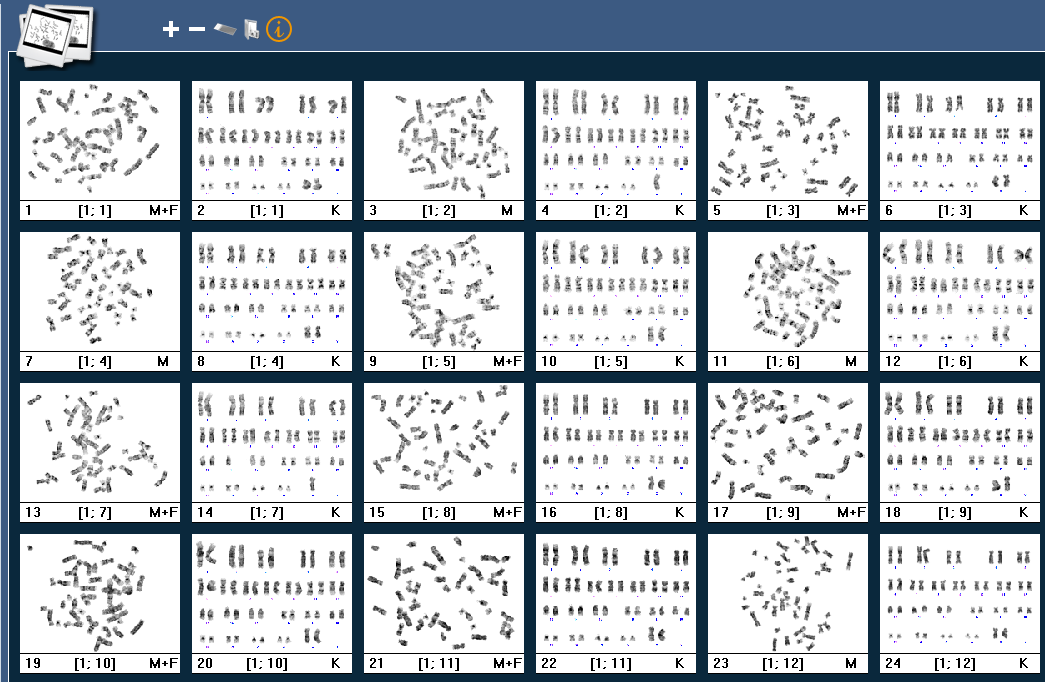
The case tree shows slides and images; the gallery tags each thumbnail by type: metaphase, karyotype, fusion and composition. A double-click opens the right environment: metaphase and karyotype in Processing, fusion in Fusion.
The gallery also shows the original camera images and, for FISH, the fluorochromes and nuclei. With Count open, a double-click stays in Count.
- Case tree with navigation by “All slides”, “All images” or one at a time.
- Gallery view by image, by slide or for the whole case.
- Case information table: for each image, chromosomes, count, analysis and karyotype result.
- Window layout that can be saved per user, restoring of the original layout and locking of the windows.
- Full-screen environments at 1×, 1.5× and 2×.
03 Acquisition
Acquisition
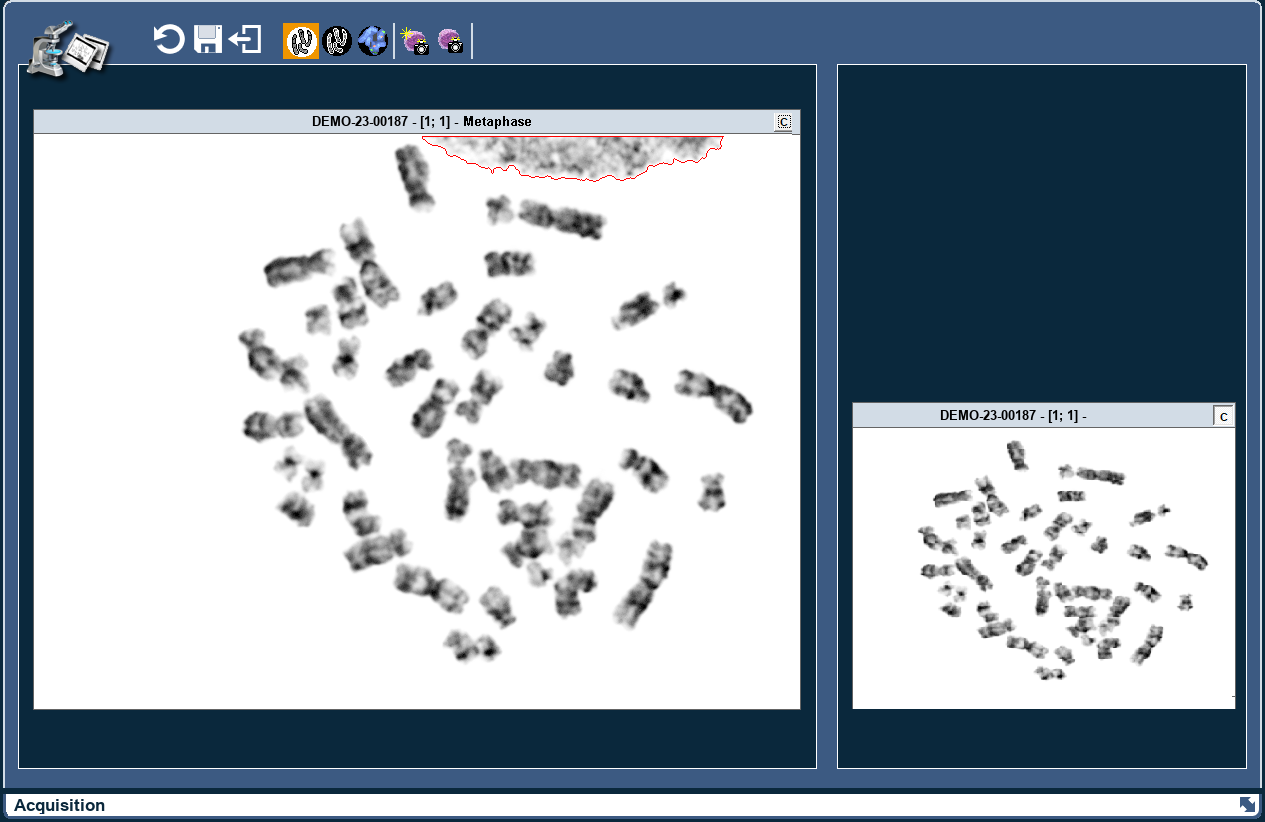
Live image from the camera connected to the microscope, also full screen, in brightfield, fluorescence and FISH.
- In fluorescence and FISH, acquisition is per fluorochrome, one channel per filter, with the fluorochrome map and colour recombination.
- New image, or further images added to the selected one, for example several fluorochromes of the same cell.
- Acquisition with automatic focus finding (autofocus).
- Camera adjustments (exposure, gain, contrast) and acquisition profiles saved by preparation type; automatic exposure with brightness objectives.
- Import of images from disk to create an image or add them to an existing one.
- Processing at acquisition: the image is separated into objects, with optional automatic contrast.
- Information on each image can be entered at the time of acquisition (option).
- Modes
- Brightfield, fluorescence, FISH
- Channels
- One per fluorochrome, recombined in colour
- Import
- TIFF, JPEG, BMP, TGA
- Thresholding
- Manual, automatic, adaptive automatic (per single object)
- Focus
- Autofocus
04 Acquisition · Module
Metaphase Finder
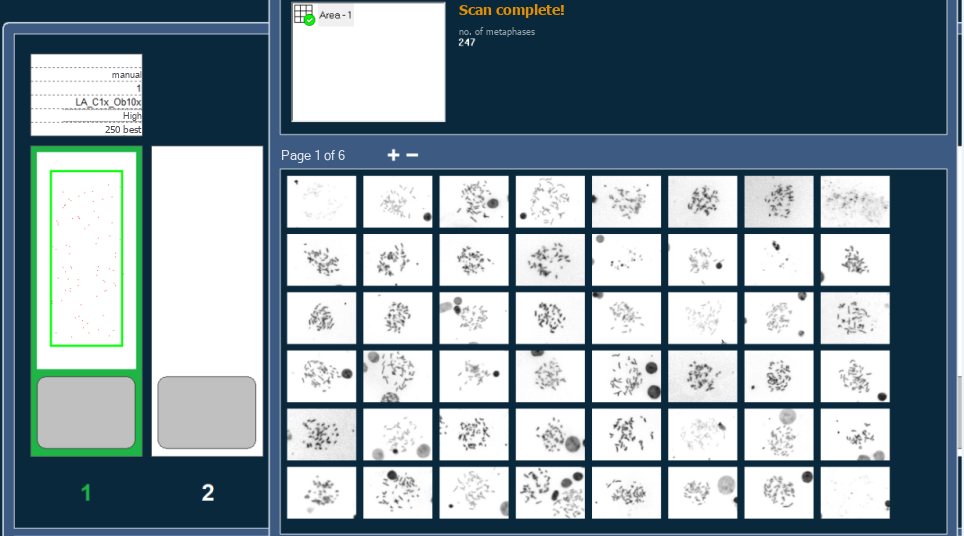
Automatic scanning of the slide with the motorised stage, without the operator at the microscope: less time at the microscope.
- 01Scan
The slide is traversed at low magnification.
- 02Gallery
Metaphases found, with preview, position and score.
- 03Selection
The operator edits the score and chooses, with zoom on the single metaphase.
- 04Repositioning
The stage returns to each chosen metaphase for high magnification.
- Finding modes in brightfield, fluorescence and FISH, with separate settings.
- Slide change and objective centring, that is, the calibration between low and high magnification.
- Association of case, slide and scan profile through the barcode.
- Finding images can be deleted at the end of the work (“Delete search images”).
- Automatic oil dispenser for the immersion objective: optional module, tied to the licence key.
05 Processing
Processing and karyotype
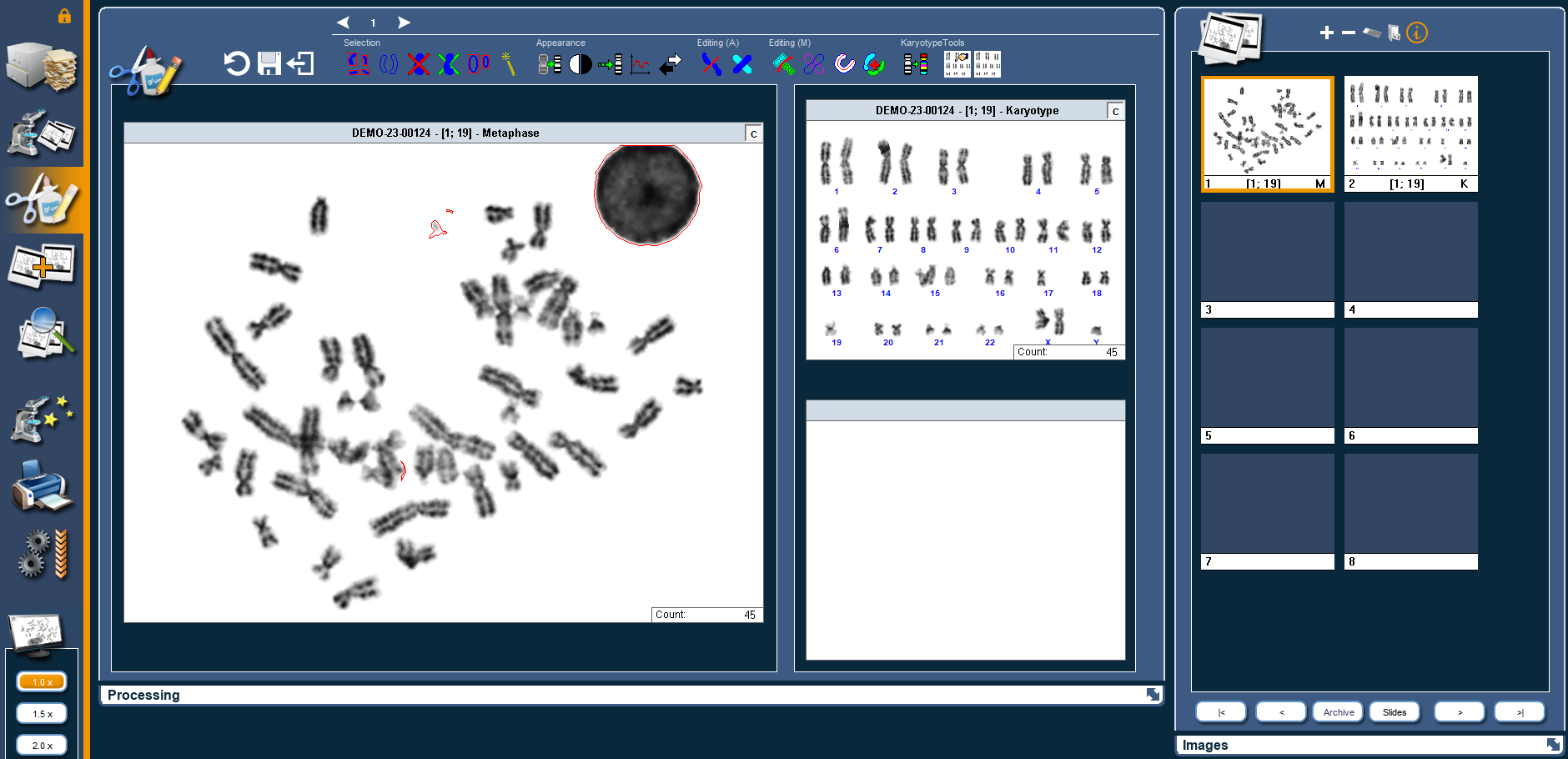
Three areas: the metaphase, the karyotype and the composition. One is shown large, the other two small, and they swap with a click.
- AreasMetaphase · Karyotype · Composition
- Classes (human species)24, including X and Y
- Ideograms400, 550 and 850 bands, including R bands
- AlignmentAt the base or on the centromere
Selection
- Select / deselect allThe chromosomes of the metaphase.
- Select clustersGroups of touching chromosomes.
- Exclude / include chromosomeAn excluded object stays in the file and can be restored.
- Automatic operationThe program decides by itself whether to separate, divide or join.
Appearance
- FiltersImage filters; background and brightness.
- ProfileDensity along the chromosome.
- Reverse modeInverted contrast.
- StraighteningOf curved chromosomes; restoring of the original.
Manual editing
- Manual separationCut along a line drawn with the mouse.
- Overlapping, by indicating pointsSeparation of two overlapping chromosomes.
- Axis drawingOf the chromosome.
- JoinOf two chromosomes.
Automatic editing
- Automatic separationOf touching chromosomes.
- Separation of two overlapping chromosomesAutomatic, for two overlapping chromosomes.
Compositions
- Free boardsTo gather the chromosomes of interest taken from the metaphase or karyotype.
- Invertible backgroundSeveral compositions per image.
Classifier
Automatic karyotyping uses a classifier chosen in the options; for each banding type, Q, G and R, the laboratory can train its own model.
The trainable classifierAccessories
- Random coloursTo tell objects apart at a glance.
- EraserTo clean up the outline of a chromosome.
- ScalingOf chromosomes.
- Comparison of homologuesChromosomes of the same class side by side.
- AnnotationsText, preset texts, arrows, lines, rectangles, circles; font and colour of your choice.
- IdeogramsBoard per class at 400, 550 and 850 bands, including R bands; the ideogram is placed beside the chromosome and scaled to it.
- AberrationsBuilding of an aberrant chromosome with its formula, which appears as a label on the karyotype.
- Band countOf the single chromosome.
Karyotype
- Automatic karyotypeClassification into the classes of the species: for the human species 24 classes, including X and Y.
- Manual classificationThe operator assigns chromosomes to classes; those already classified stay highlighted.
- Move, swap, rotate, flipEach chromosome, vertically and horizontally. The result is always checked by the operator.
- AlignmentAt the base or on the centromere, auto-alignment, editing of centromere positions, automatic scaling.
- Species editorConfigurable karyotype layout and classes, including for species other than human.
06 Fusion
Fusion
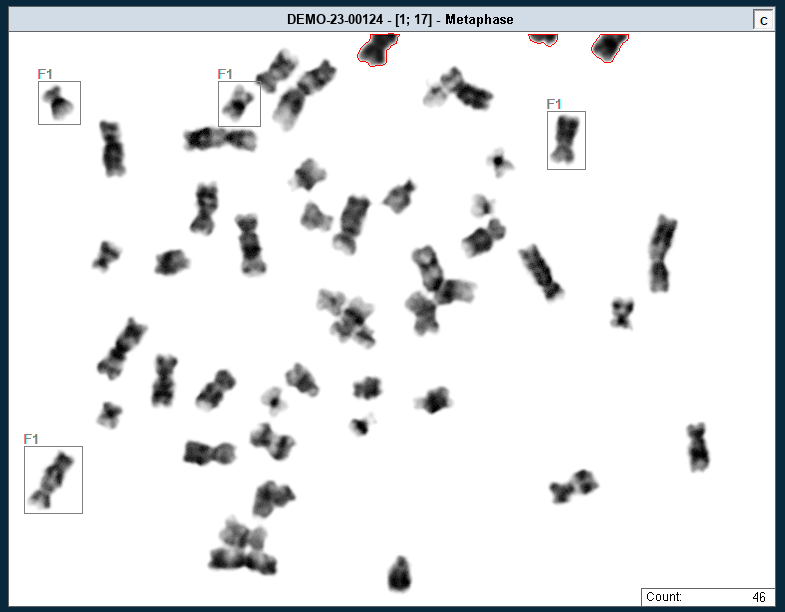
When a metaphase has chromosomes outside the field, the operator acquires further captures, the “F” images, and recovers them.
- Capture and metaphase sit side by side in the Fusion environment.
- Missing chromosomes are dragged from the capture to the metaphase, or selected and transferred all together.
- Transferred chromosomes are highlighted with a frame and the label of the fusion they come from (F1, F2…).
- If the fusion and the metaphase have different resolutions, the program rescales the transferred chromosomes.
- On the capture: selection, automatic and manual separation, joining, random colours and Reverse.
07 Count / Visual analysis
Count and visual analysis
When it is enough to count or check the classes, directly on the metaphase. Count and analysis are saved with the metaphase and can be resumed later.
Manual count
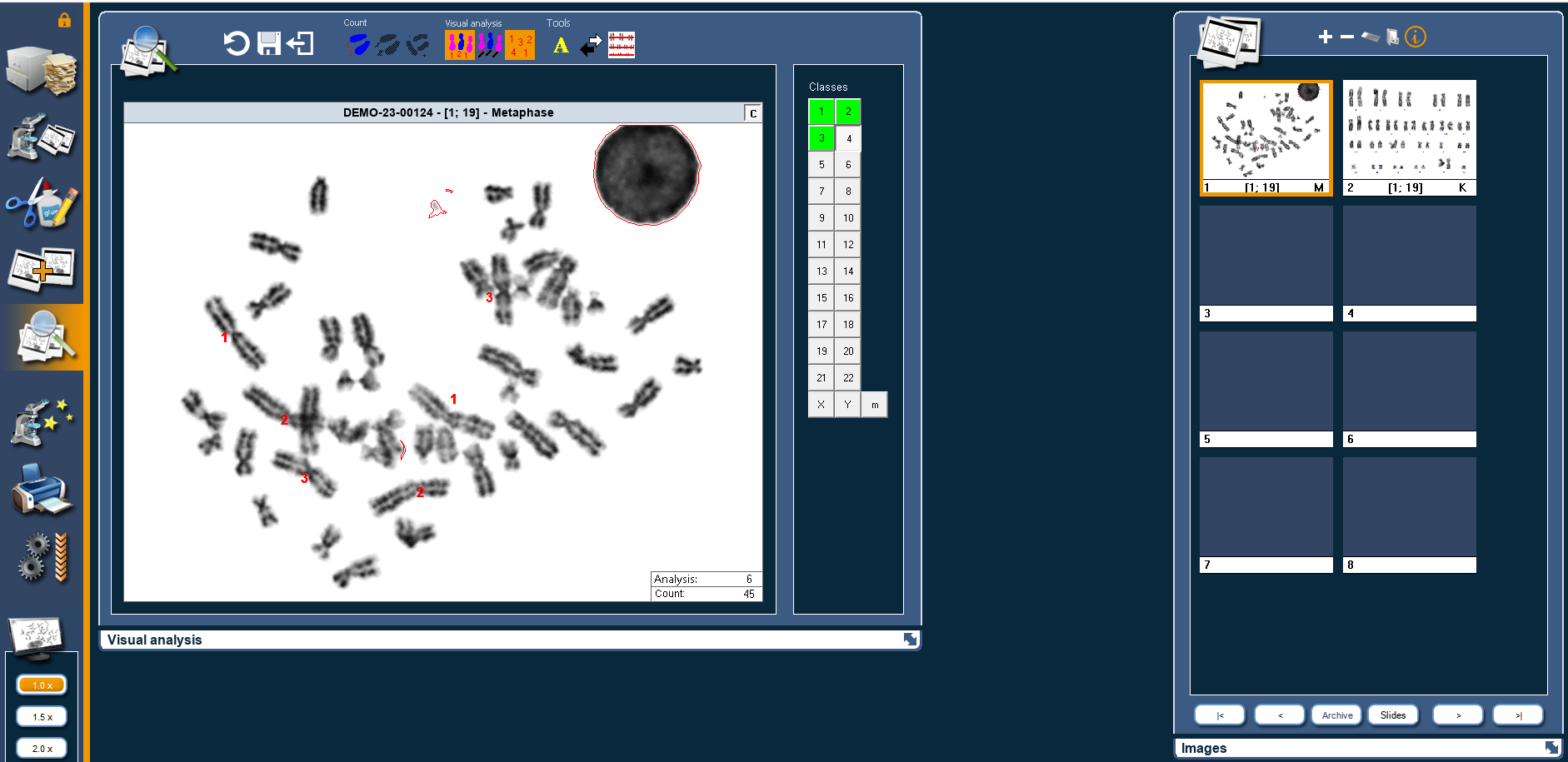
- One click per chromosomeEach click places a mark; the total is always visible.
- Right-clickOn a mark to remove it.
Automatic count
- One mark per chromosomeFor each chromosome recognised, to be reviewed.
Sorting
- From largest to smallestThe chromosomes are lined up in a row to count them more easily, and the marks follow them.
Visual analysis by class
- Assignment with one clickEach click assigns the chromosome to the class chosen in the column on the right.
- Next classEvery two clicks it moves on to the next class: chromosomes come in pairs.
- Class statusThe buttons change according to the chromosomes received: a class with one chromosome missing or in excess is seen at once.
- Mark “m”Marks chromosomes that cannot be attributed to a class.
- None
- One, one missing
- Complete pair
- More than two
08 FISH
FISH
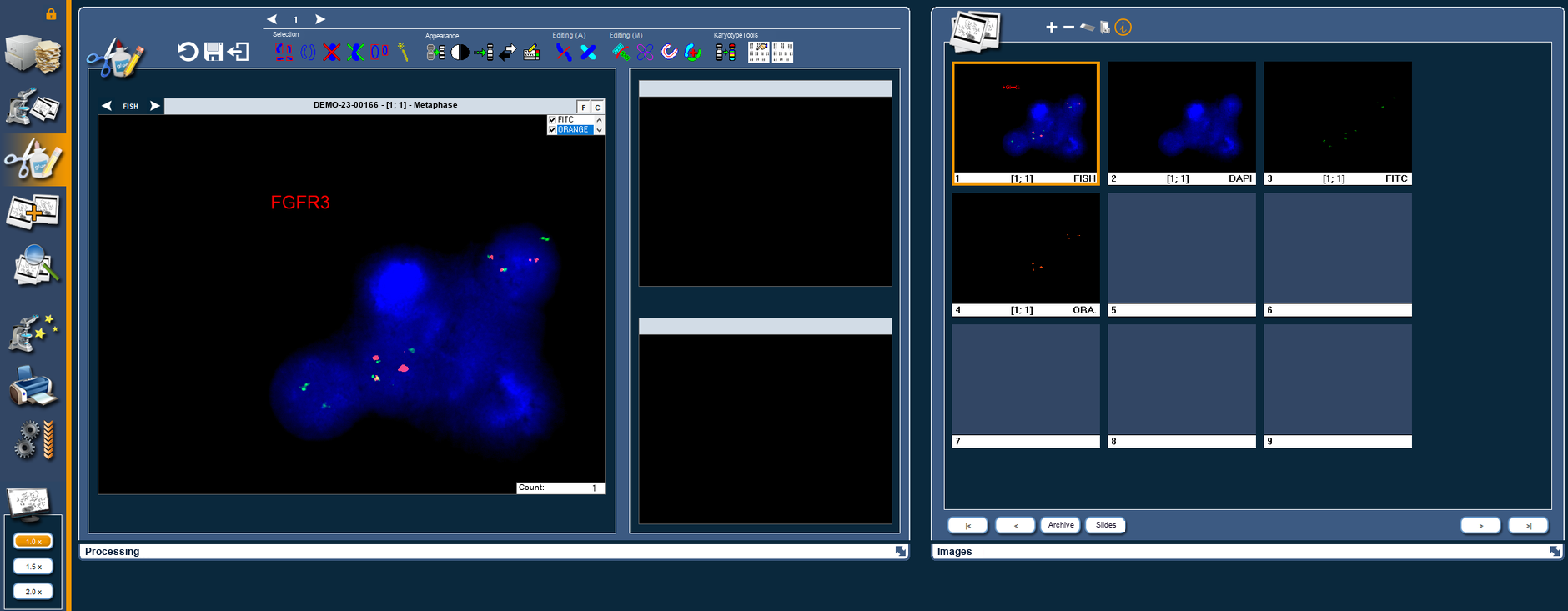
Processing of FISH images, with fluorochromes and probes. Metaphases and nuclei sit in the same gallery of the case.
- Acquisition per fluorochrome with a motorised filter wheel and, where fitted, LED illumination at configurable wavelengths.
- Colour recombination of the channels; configurable colours and names of fluorochromes and probes; choice of counterstain.
- Coloured fluorochromes also in the gallery thumbnails.
- Measurement of optical density and evaluation of the signal ratio.
- The Processing tools (separation, karyotype, ideograms, compositions) are also available on FISH images.
- Channels
- One per fluorochrome, recombined in colour
- Configurable
- Colours and names of fluorochromes and probes; counterstain
- Measurements
- Optical density; signal ratio
- Illumination
- LED at configurable wavelengths, where fitted
09 Report · Options
Report, printing and productivity
The result goes into the report and stays with the case. Macros and shortcuts reduce the steps of the most frequent operations.
Report
- Customisable reportsWith images, karyotype and case data.
- Control panelPreview, printing, printer setup, worksheet.
Printing and export
- Quick print from the keyboardOf the image or of the whole slide, without opening the panel.
- Saving as PDFWhile printing (option), with the possibility of omitting empty images.
- Displayed imageSaved as JPEG or BMP.
Productivity
- MacrosRecording and replaying of the most frequent command sequences.
- Customisable keyboard commandsEvery button can have its own shortcut.
Languages
- Italian, English, French, GermanThe program uses the language of the operating system. Other languages can be added on request.
Options
Pages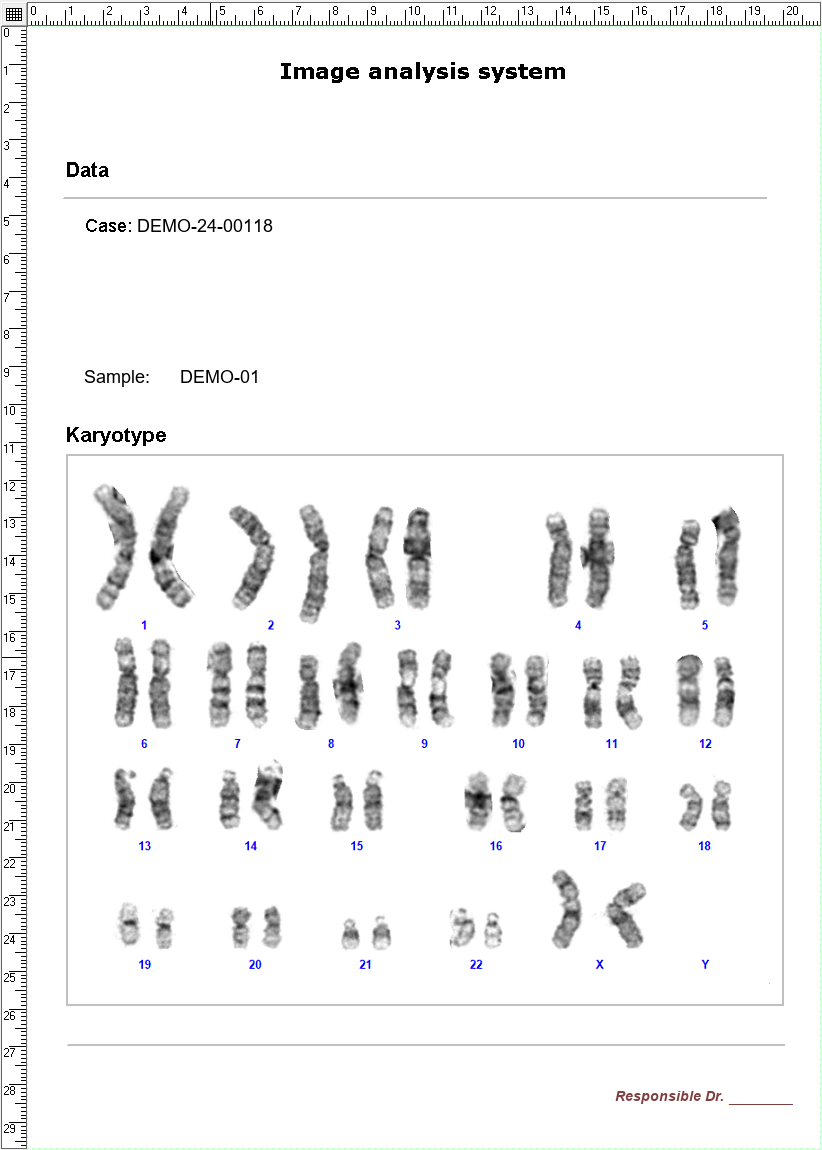
10 Continue
Learn more.
For Research Use Only.
LeafYX is software for cytogenetics research. For Research Use Only (RUO): not a medical device and not for use in diagnostic procedures.
The automatic functions produce suggestions: separation, classification, karyotype and count remain under the operator’s verification.
Demo
See these features on your own preparations.
Contact us for a demonstration, to check your hardware configuration or to define the modules best suited to your lab.